Rendering Pipeline of Unreal Engine
•
#Unreal#Rendering
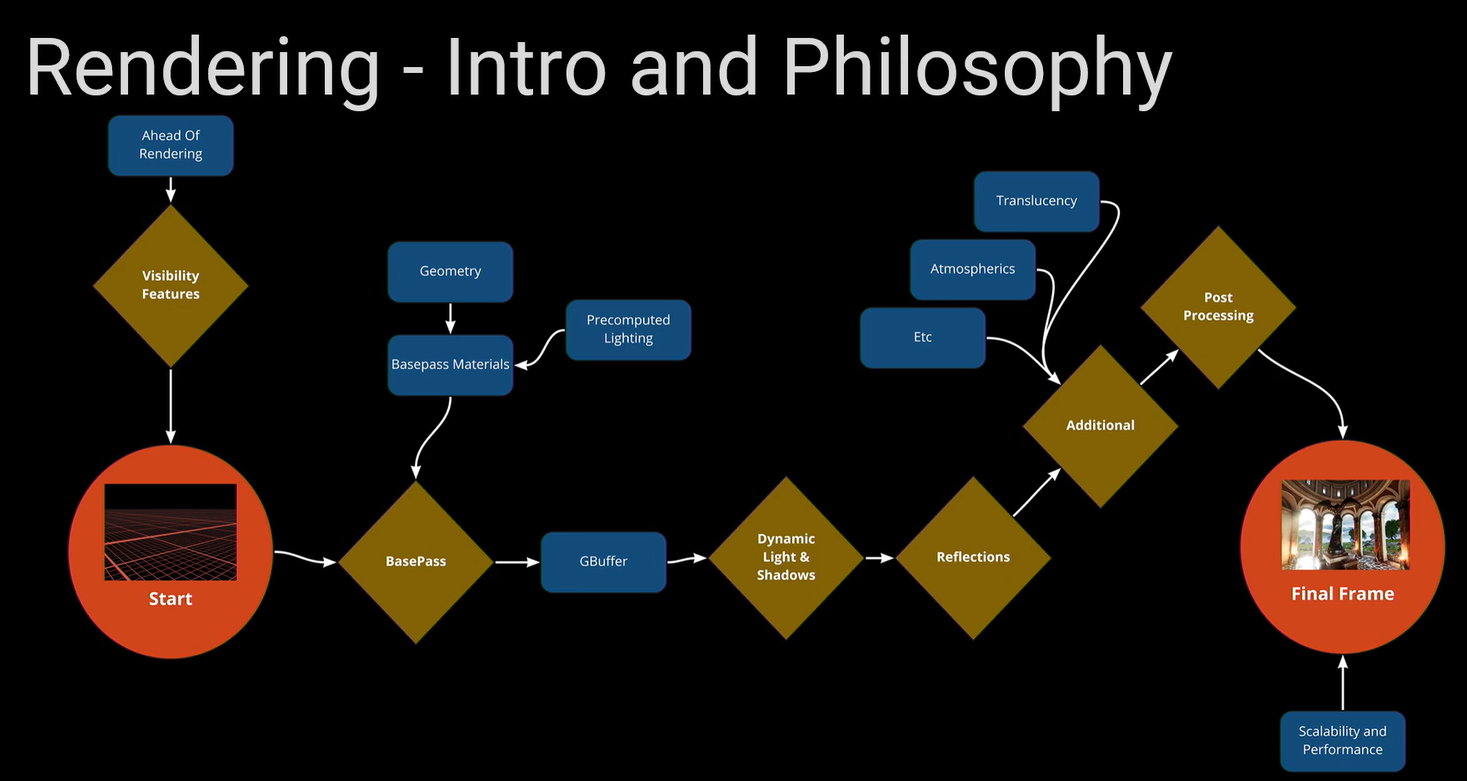
The Unreal Engine utilizes a rendering pipeline to generate high-quality visuals while maintaining optimal performance across all platforms. This pipeline supports both forward and deferred rendering, and the following overview is based on the "Rendering Kickstart" talk from the Unreal Engine Community Talks.
BEFORE START OF RENDERING
CPU on frame 0:
- does work on physics, networking, animations, etc. then passes on the work to GPU
- GPU is 2 frame behind CPU because of the pipelining in CPU. a thread passes data from CPU to GPU, GPU starts work, thread passes data from GPU to CPU. so GPU has to wait for data to come to it from CPU in frame0, and then wait for one more frame for data to process at CPU.
- At this point, position of every existing object is known.
Frame 1
- Computes the visibility of every object in the scene. what’s seen and what’s not seen by camera. this includes culing and types on culling.
- At this point, the visibility of every object is known.
- Occlusion/ visibility processes. Following processes are done in order given
- Distance Culling
- Frustum culling
- Precomputed visibility
- Visibility culling
- software occlusion
- mesh LODs
- hardware occlusion
- every mesh is an occluder for every other mesh
- software occlusion
RENDERING STARTS
Frame 2: Rendering starts
- Early z pass: depth of objects are scanned. This is stored in the Scene Depth Buffer.
- BasePass: Drawcalls on all meshes (static and dynamic) + base materials + light maps (static lights and shadows). Initial rendering pass
- drawcalls of every mesh
- basepass on materials + lightmass { lightmaps (static lights and shadows, includes volumetric lights) }
- static volumetric light - dots are placed in the world in the volumetric lighting volume. light from dynamic lights is calculated and stored at these points. when an actor goes near these dynamic lights, it reads light values from the dots to compute it’s lighting.
- GBuffer : is a set of 5 buffers that is maintained by cpu for every frame. Basepass renders itself from all it’s data to 5 buffers.
- SceneDepth Map
- Buffer A - World Normals
- Buffer B - Specular / Roughness/ Metallic together
- Buffer C - Base Color
- Buffer D - Additional
- Buffer E - Additional
- Dynamic Lighting and shadows: Direct and Indirect lights and shadows. are specialized and is very big.
- Direct
- Light
- IES profiles - This is the shape of the light cone. can be baked.
- Light function - can take an unreal material and blend light with it to cast dynamic lights. cannot be baked.
- Shadow
- dynamic shadows - regular shadows cast by for example, point lights.
- cascaded shadow maps - specifically outdoor environments. shadows need to disappear gradually with distance.
- distance field shadows - for an object, shadows of the part of obj nearer the surface are sharper than shadows of part of same obj further from the surface.
- raytraced shadows - full on raytracing
- Inset Shadows
- Per object shadows
- Contact shadows - fine detail shadows for when two objs are closer to each other. e.g. cable on a table
- Light
- Indirect
- Light
- Light propagation - Older real time GI system
- raytraced GI
- Shadow - First two are commonly used in games
- Capsule shadow - simplistic shadows (used for performance or scale)
- DFAO - distance field ambient occlusion
- raytraced AO
- Light
- Direct
- Reflections: Reflection captures, planar reflections, screen space (SS) reflections, ray traced reflections
- reflection Captures - simplest and easiest. cube maps used to capture
- Planar Reflections - works on surfaces that are completely horizontal. not on walls
- Screen space reflections - don’t really understand how this works
- Raytraced reflections
- Additional :
- Transparency
- Translucency
- Be aware of all the lighting models that are given for translucency.
- Lighting models:
- Volumetric Dir / nondir
- Vertex Dir / nondir
- surface translucency volume
- surface forward shading (nice but expensive)
- raytraced
- Lighting models:
- Be aware of all the lighting models that are given for translucency.
- Atmospheric fog
- Sky atmosphere
- Exponential height fog - color fades out in distance and up.
- atmospheric fog - is complex than exponential height fog. enable volumetric fog. reads itself from lightmap and colors itself. also renders shadows too. also uses volumetric materials.
- PostProcessing: pretty much all layers (~75%) are enabled by default. not put in camera. they are put in a postprocess volume
- tonemapper - color and tint correction, contrast, sharpen
- Blooom - is multistate. blends all types of bloom together.
- standard
- convultion
- SSAO
- SSSSS - Screen Space Sub-Surface Scattering
- Screenspace GI - like photoshop
- Depth of Field
- Gaussian - cheap
- Bokeh - expensive but good
- Circle/Cinematic - good and cheap
- Exposure- min / max brightness
- Blendables - blend materials into pos process for advanced effects. happens in a pp volume
- Camera Effects
- grain, vignette, chromatic aberration, lens flare, dirtmark in a pp volume
Final Frame: Performance
- GPU Profiler
- Statistics
- View modes
- Scalability :
- CVars - All the things that you can type in the console (’~’ key). all things related to rendering starts as “r.” things are temporary so feel free to experiment. can turn things on or off even while running the game.
- Using CVars for configs on different target platforms and devices. in-depth configs for every device can be set independently.
Advices
I haven't completely understood how these are used, but I'll list them below if ever required.
- Shadow Rendering
- Managing tris amd draw calls
- Translucency
- Material Cost
- Forward / Mobile
- Baking Light
- Reflections
- Scalibilty Cvars/Show